Reply to a ticket
To answer a customer on a ticket:
- 1Open Tickets from the sidebar and click the ticket in the list to open the conversation.
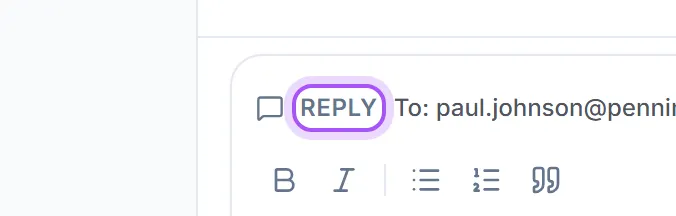
- 2In the Reply box at the bottom, check the From address is the support address you want to send from, and the To address beside it is the person you mean to answer.
- 3Write your message. If you'd like help, Dealy can draft the reply for you
. See "use Dealy to draft a ticket reply".
- 4Click Send reply. The message is emailed to the customer and added to the conversation.
Your reply goes to the customer. If instead you want to leave a note for your own team that the customer can't see, use Internal Note.
Add an emoji. The smiley button in the reply toolbar opens an emoji menu. Pick one and it lands where your cursor is, and goes out in the e-mail like any other text.
See who wrote what. Every message in the conversation carries a small picture of its author: your teammates show with their own photo, and the customer's side shows their initials. The inbox list shows the company name above the person's name, so you can tell who a ticket is from at a glance.
The reply follows the contact. A ticket answers whoever sent the mail that opened it, which is not always the person it is about: a colleague forwards a customer's message, or it arrives from a shared address. Put the right contact on the ticket and the reply is aimed at them from that point on. Setting an address by hand always wins over that.
Once the issue is resolved, set the ticket's status to closed so it leaves your open queue.
Was this helpful?