Customers
A customer in DealJourney is a company (or person) you actually do business with: an established, active relationship rather than just an early prospect. A customer record carries the full picture: contact details, the people you deal with, opportunities, subscriptions, invoices, notes, and history.
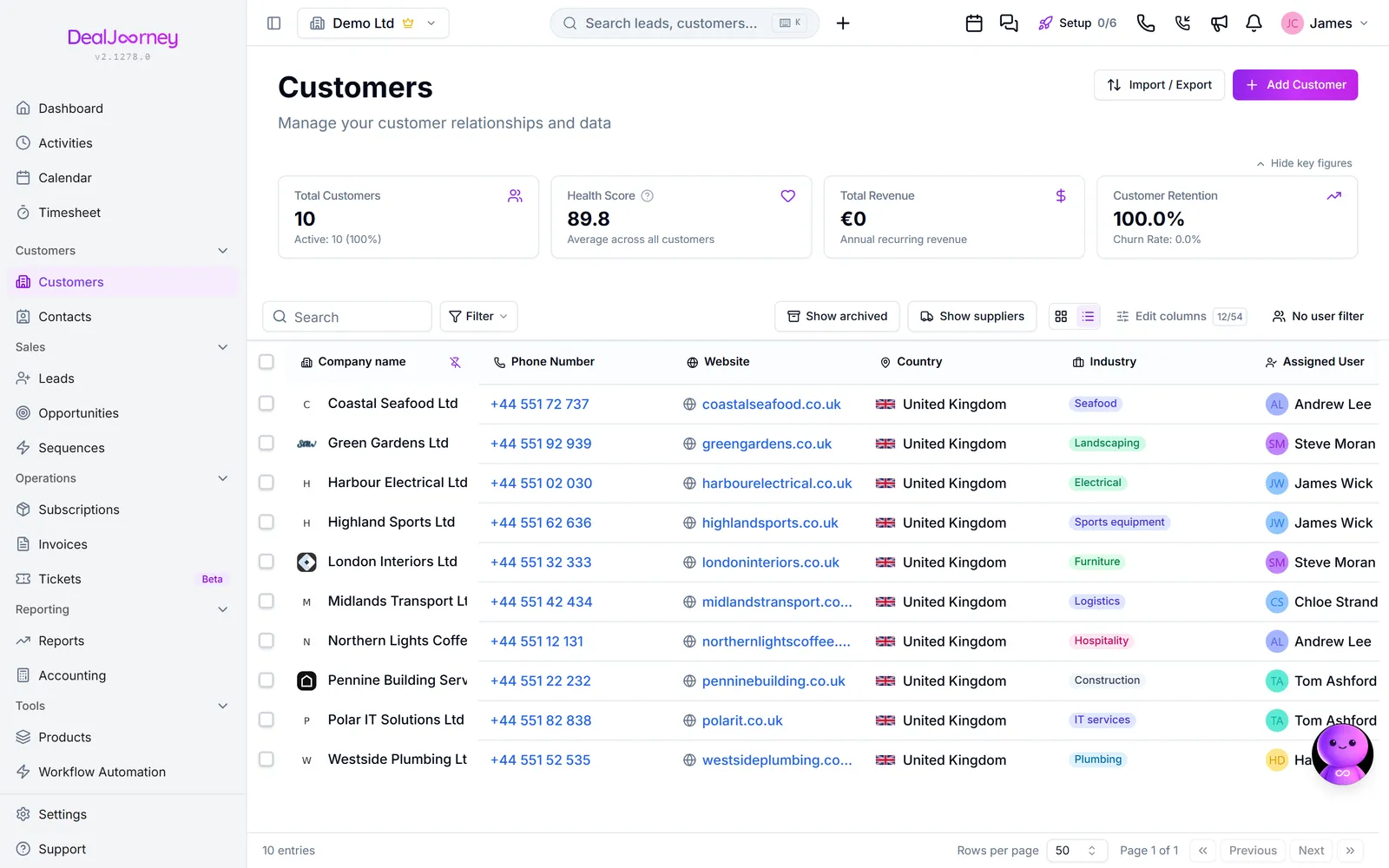
How a customer differs from the things around it:
- Customer vs lead: a lead is an early-stage prospect you haven't committed to yet. A customer is a real relationship. You qualify a lead and convert it into a customer once it's clear the relationship is real.
- Customer vs contact: a customer is the company / account; a contact is an individual person who works there. One customer can have many contacts (for example a buyer, an accountant, and a manager).
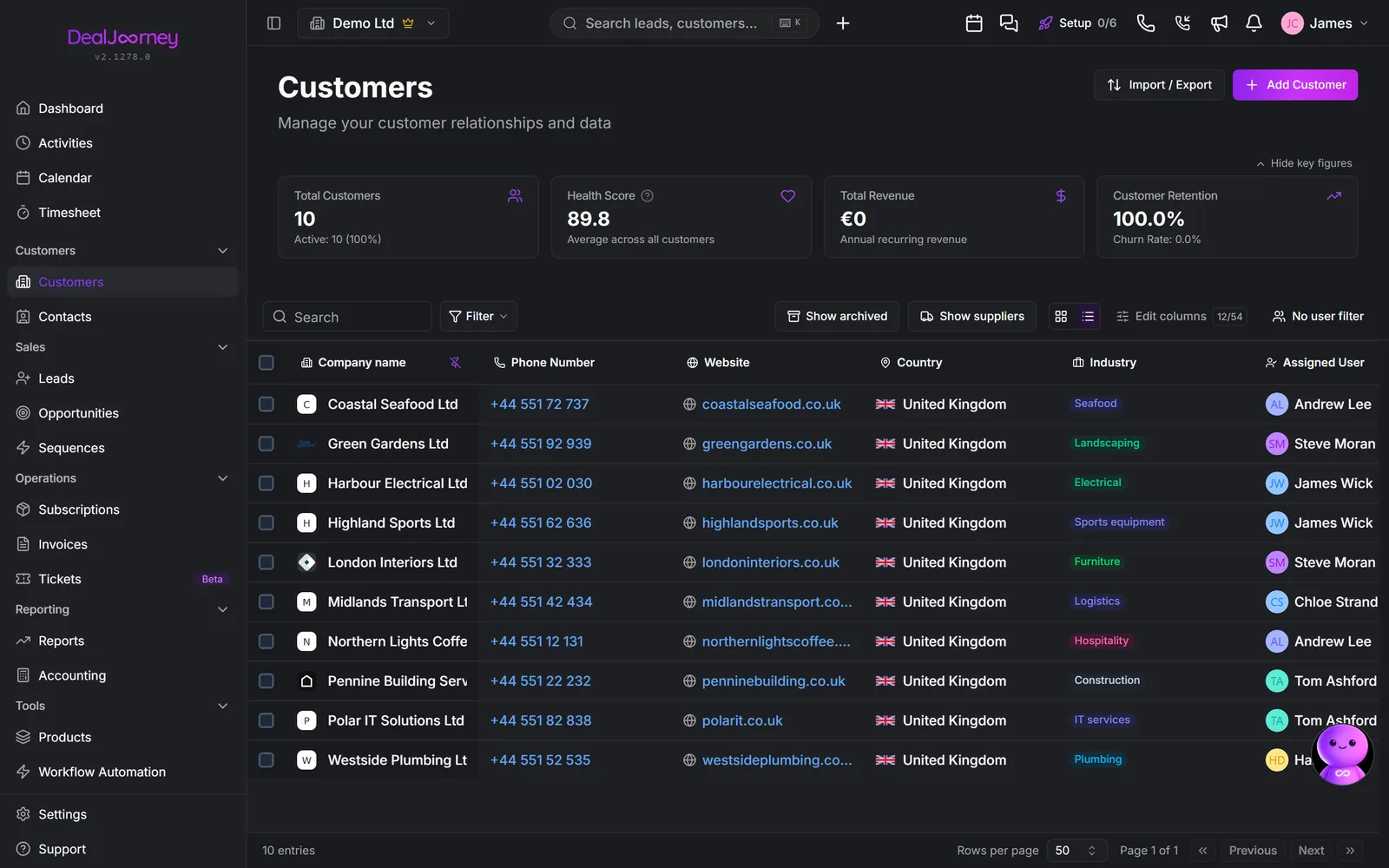
From the Customers page you can add new customers, edit their details, search and filter the list, save views you use often, and open any customer to see everything linked to them.
On the customer record, activities, invoices and tickets have paged lists. Searching and filtering apply across the matching records, including those beyond the current page. See Filter a list for the shared list controls. Meetings load in batches from the CRM and connected calendar. When more history is available, load another batch; meeting order and counts describe the loaded entries until all batches are available.
The customer's recurring value includes active subscriptions. Recurring and won-deal summaries use the workspace currency and current daily exchange rates. These are current-value summaries, not historical accounting totals. Won deals follow the workspace's active stages marked as won. When a needed rate cannot be obtained, the value stays unavailable instead of showing a partial total.
In this section
Add a customer
Add a company by hand, or look it up and let the details fill themselves in
Edit a customer
Update a company's details, owner, or the fields your team added
Delete a customer, and restore one you deleted
Remove a company, what goes with it, and how to bring it back within 30 days
Search, filter, and save customer views
Search, filter and save the customer views you come back to every week
Understand and change the customer health score
What the health score on a customer is built from, and how to change what healthy means for your business
Look a company up on Proff
A one click shortcut from a company, and from its activities, to that company on Proff
The industry code on a customer
Keep the public register's classification code so you can filter and report on what a customer actually does
Update a company's data from the register
Compare what you have against the business register and copy over only the fields you choose
Merge duplicate customers
Fold two cards for the same company into one, and keep the accounting link with it
Flag a company so nobody misses it
Mark a company with a reason, such as do not contact, that shows in red everywhere the company appears
Link companies to a parent company
Link one company, or a whole batch of departments, to the parent company they belong to
Common questions
- How do I create a customer?
- How do I edit a customer?
- Where do deleted companies go?
- How do I search customers?
- What is the customer health score?
- Why is there no Proff button on this company?
- Where is the industry code?
- Why did my phone number not change?
- What happens to the PowerOffice link when I merge customers?
- Why is this company name red?
- Is there a link between parent company and department on customer records?