Search and filter the support inbox
The Tickets list gives you a few ways to find what you need:
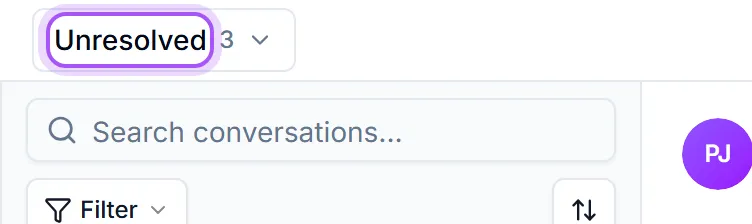
- 1Tabs: across the top of the list, switch between Unresolved, My Tickets, Not answered, No company linked and All tickets. Most of the time you'll live in Unresolved or My Tickets. Not answered is the queue where the customer spoke last and nobody has answered. No company linked is the clean-up queue: cases from a sender we could not match to a company, which is the list to work through when you want to tidy that up.
- 2Search: type into the search box (it reads Search conversations...) to find a conversation by subject, sender, or a case number. Type a case number on its own, such as 30012 or #30012, and the case is found even when it sits in another tab.
- 3Filters: open the filter bar to narrow by status, priority, tags, and more, and save a filter you use often as a view that appears as its own tab.If you have more than one support address connected, an
All inboxes selector lets you focus on a single inbox.
Three ways to look at the same cases. The buttons in the top right switch between them and your choice is remembered.
- Inbox view puts the list beside the conversation, which is what you want when you are answering.
- Table view lays every case out as an ordinary table with sortable columns, so you can compare and audit rather than reply. Pick your columns the same way as on any other list, and click a row to open the conversation.
- Kanban view shows them as a board grouped by status.
The table view also tells you plainly how many cases the filters are hiding, so a narrow date range never reads as missing data.
The filter bar and saved views are the same component on every list in DealJourney, so anything you learn here works on the others: Filter a list covers building a filter, and Save and share a view covers keeping and sharing one.
Was this helpful?