Add a contact to a company
There are two routes, depending on whether the person already exists in your CRM. On the company itself, both start from the same button.
The person is new: add them from the company
This is the usual case, and the quickest, because the link is made for you.
- 1Open the customer from Customers in the sidebar.
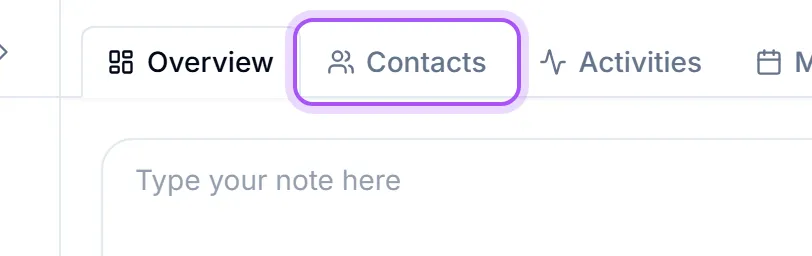
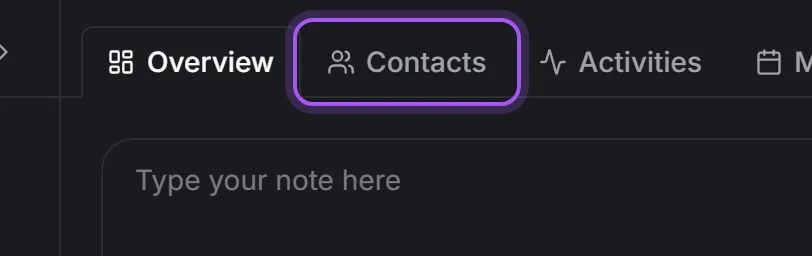
- 2Go to the Contacts tab on the customer's page.
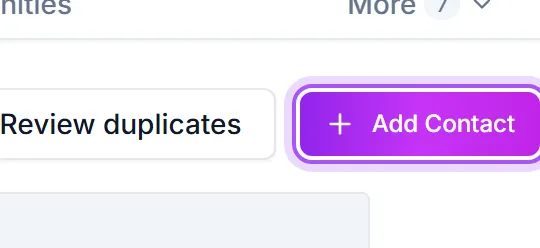
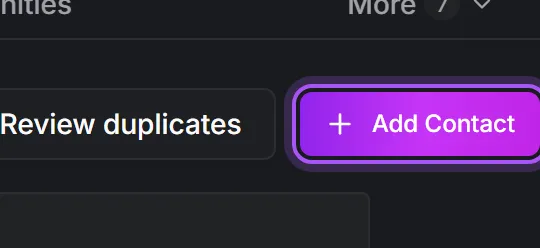
- 3Click Add Contact, then Create new contact at the bottom of the list that opens.
- 4Fill in the person's details. The company is already filled in for you, so you only need the name and whatever contact details you have.
- 5Press Create Contact.
The contact is created and linked to that company in one step, and appears on the Contacts tab straight away.
The company is marked as the new person's primary company, shown by the filled star next to it on the new contact page. Click the star before you create the contact if this company should not be their main one.
The person already exists: link them from the company
- 1On the customer's Contacts tab, click Add Contact.
- 2Type part of the person's name or email in Search by name or email.... The list only shows people who are not linked to this company yet.
- 3Pick the person.
They appear on the tab at once. Linking someone here does not change their primary company: if they already belong somewhere else, that stays their main company until you change it.
The person already exists: link them from the contact
Use this when you are already on the person's page, or when they need to be attached to a second company as well as their first.
- 1Open the person from Contacts in the sidebar.
- 2Find the Organizations card on their page.
- 3Click Add organization.
- 4Start typing the company name in Search organizations... and pick it from the list.
The link is saved as soon as you pick the company. There is no separate save step. If the company is not in your CRM yet, the bottom of that same picker offers Create manually so you can create it without losing your place.
Choosing which company is the main one
A contact can hold several company links at once. The one marked primary is the company shown beside the person's name in lists, search results and pickers.
On the Organizations card, click the star on the company you want (Set as Primary). Several people can share the same primary company; each person has one.
Taking a contact off a company
Two different actions, and the difference matters:
- Deactivate the link when the person has left that company. The link stays on record, so the history of who worked where is preserved, but they drop out of the company's active contact list.
- Remove from Organization deletes the link entirely. Use it only when the link was made by mistake.
Neither one deletes the contact. The person stays in your CRM with their other company links intact.
Was this helpful?