Using DealJourney on your phone
There is no separate app to download. DealJourney runs in your phone's browser and installs from there, which is why it is always the same version as the desktop and never waits on an app store review.
Open the site in your phone browser, then:
- iPhone (Safari): Share → Add to Home Screen.
- Android (Chrome): the ⋮ menu → Add to Home screen / Install app.
If your plan includes chat, the phone app does not make you hunt for that menu: it shows its own Installér button. See Chat on your phone.
You get an icon that opens full-screen with no browser chrome, and you stay signed in.
The bottom bar is yours to arrange. Open Profil & indstillinger → Mobilnavigation.
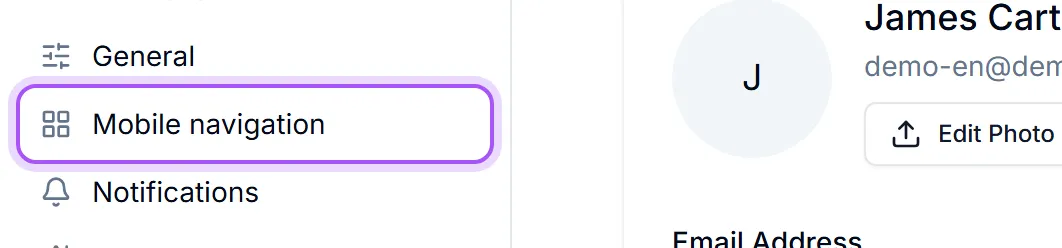
Vælg de genveje, der skal ligge i linjen nederst på skærmen på mobilen. Kun sider, du har adgang til, vises her.
- 1Under Tilføj en genvej, Tryk på en side for at tilføje den til linjen.
- 2Use Flyt tidligere and Flyt senere to order them, or Fjern fra linjen to drop one.
- 3Forhåndsvisning shows exactly what the bar will look like as you go.
„Mere“ har altid den sidste plads — den åbner hele menuen, så intet bliver utilgængeligt. So putting the four things you actually do on the move in the bar costs you nothing — everything else is one tap further away rather than gone.
There are only a handful of slots, and Linjen er fuld. Fjern en genvej ovenfor for at tilføje en ny. once they are used. Nulstil puts the default bar back.
This is per person, so the field seller and the person doing the invoicing can each have the phone they need.
Var det her nyttigt?