Map
Kort puts addresses on a map so you can work by area instead of by list.
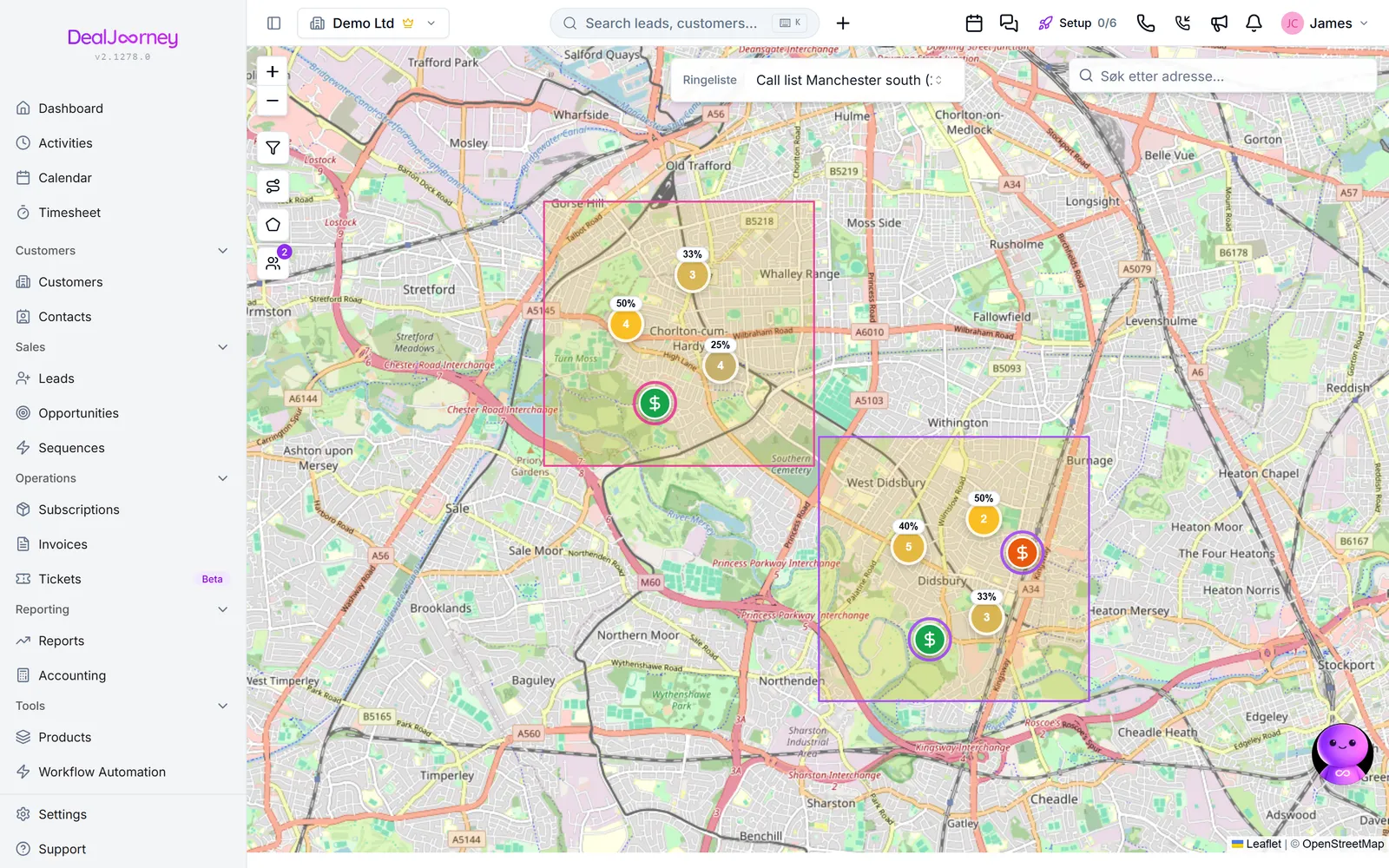
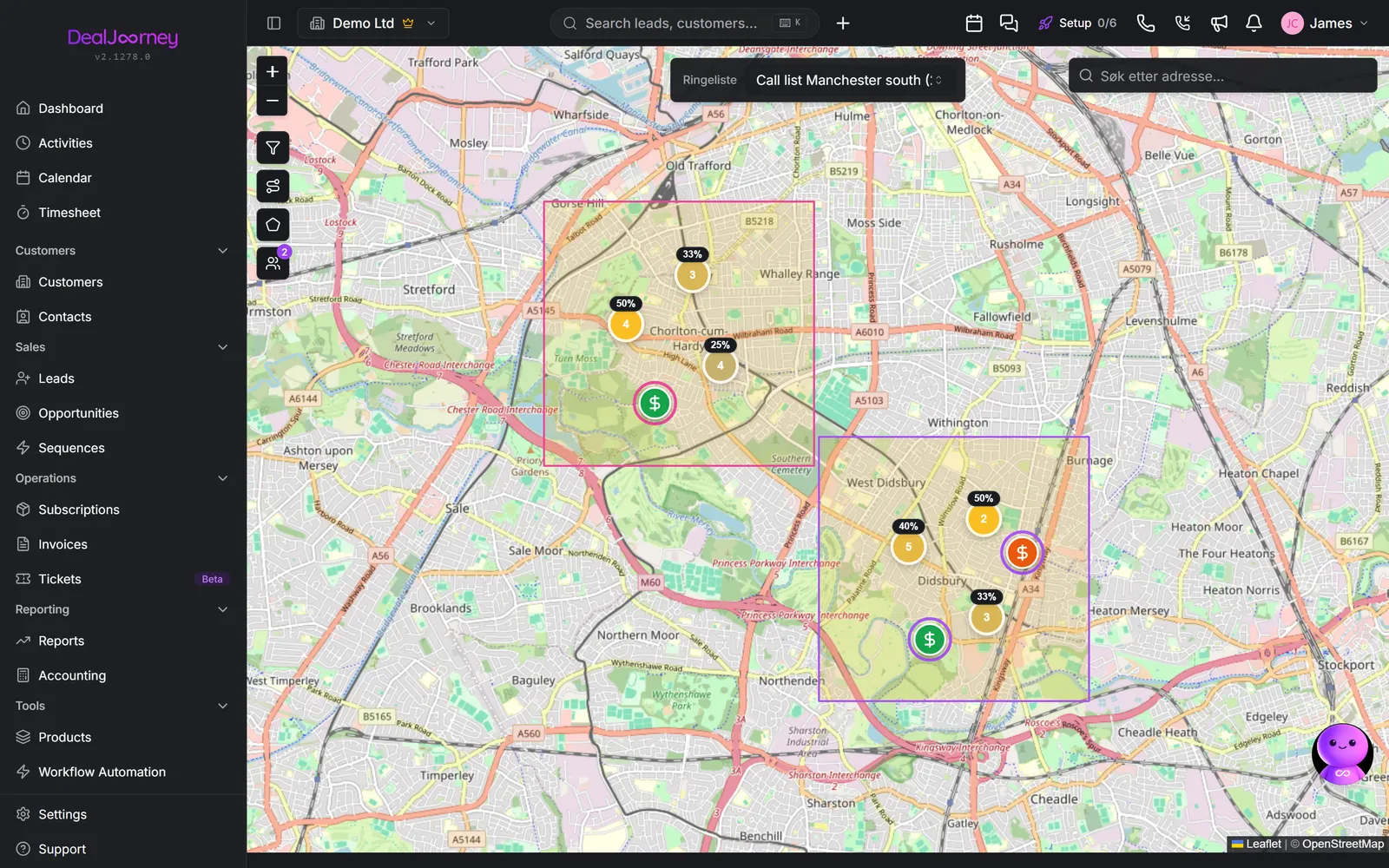
The map is in beta. It works and is supported, but it is still changing. Tell us what is wrong for your area: that is what shapes it.
What it shows
The map shows one of two things at a time:
- The addresses on a calling list. Choose the list under Ringeliste. Each address is a pin coloured by its status, and you can draw areas and hand them to reps. See Work a calling list on the map.
- Your own record types, such as service units, once an administrator has enabled the record type for the map. See Show custom records on the map by service date.
Customers, contacts and deals are not plotted on this page. To see some customers on a map, tick them on the Kunder list and choose Vis på kort from the actions above it. That opens a map of just the companies you picked, and it does not need the Map module.
It plots what has an address it can place. Addresses that have not been placed yet, or cannot be matched, do not appear, so a thin-looking map is usually an address problem rather than a coverage problem.
Getting Map into the sidebar
Three things must all be true before Kort appears in someone's menu:
- 1DealJourney has switched the module on for your company. Map is off by default on every plan, and a workspace administrator cannot switch it on from the workspace settings. Ask DealJourney to enable it for your company.
- 2The person's role can open the Map page. An administrator sets that in Rolleadgang. See Control who can open what.
- 3If your company uses its own sidebar menu, Map has to be placed in that menu. A custom menu only shows the pages you put in it. See Build your own sidebar menus.
In the standard menu it sits right below Leads, with a beta badge.