Set up the support desk
Open the ticket settings. The left rail groups everything into what belongs to the workspace and what belongs to replies.
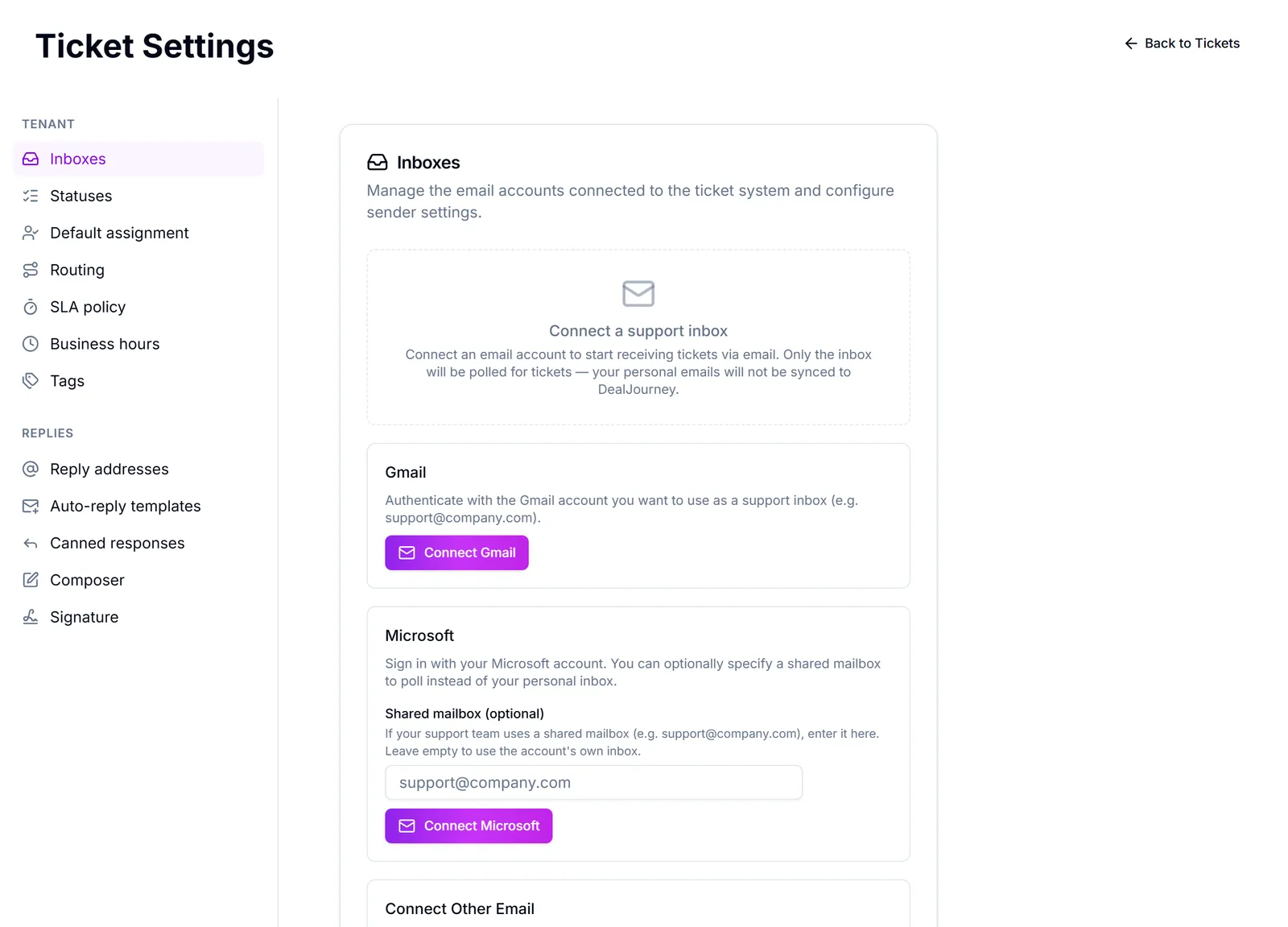
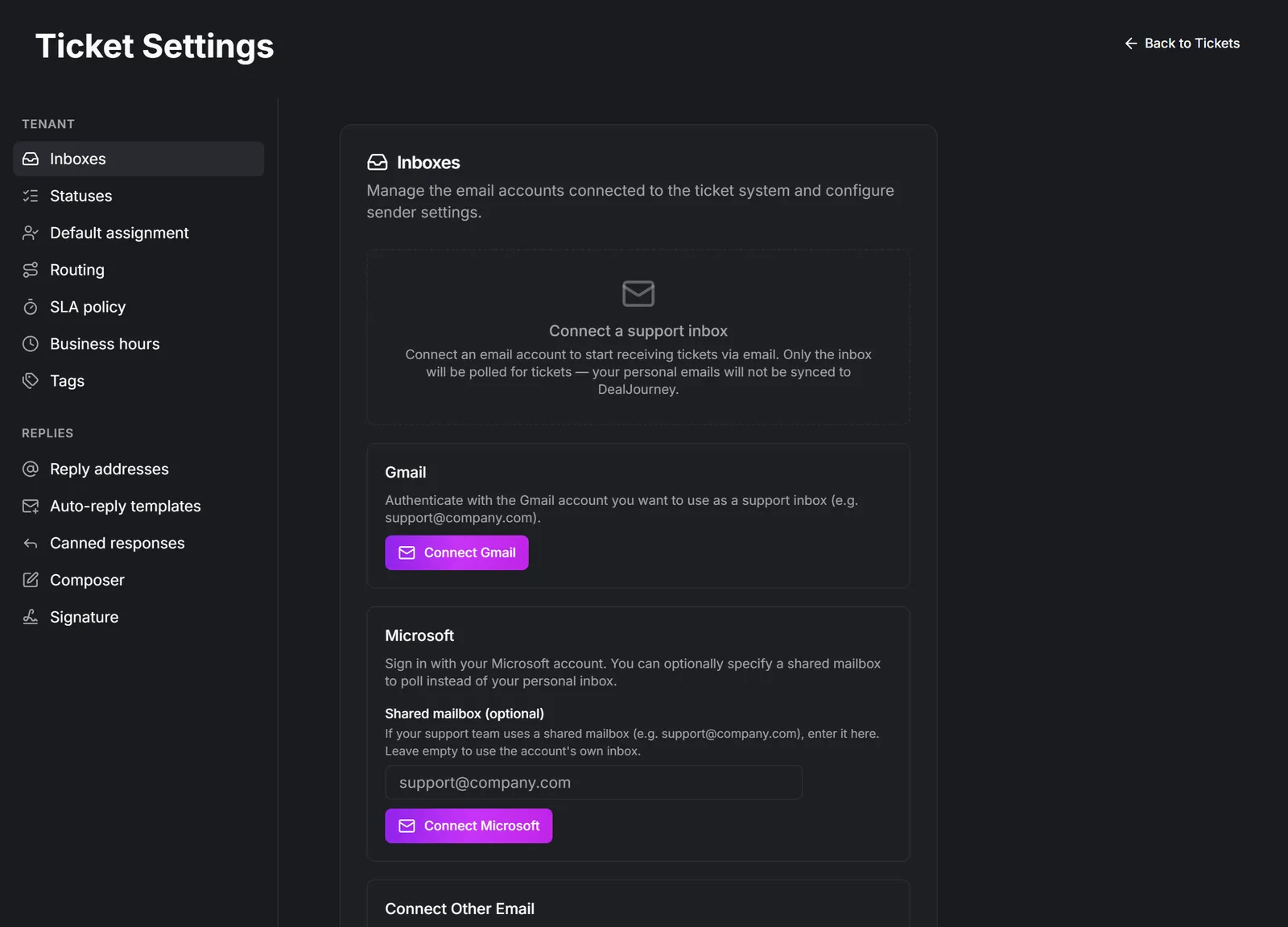
Inkorgar — the mailboxes tickets arrive in. Connect a shared support address here; personal inboxes are separate. This is the first thing to set up, because nothing else matters until mail is arriving.
Statusar — the states a ticket moves through. Keep them few and unambiguous; a status nobody can define is a status people avoid. The colour you give a status is the colour it is shown in everywhere a case appears: the dot in the inbox list, the label on the case, the status column in the table, the board, and every status picker. Statuses you mark as solved are drawn as an outline rather than a filled dot, so finished work steps back in a long list.
Ärendenummer: every case gets a running number, shown as Ärendenummer on the case, in front of the subject in the list, and as the Ärendenr. column in the table. Typing the number into the search box finds the case, whichever tab it is in. Use Börja numreringen på to choose where numbering starts, for example 30000 to carry on from the number series you used before. The next case gets that number, or the number after the last case if that is higher, so numbers only ever move forward and are never handed out twice. Cases that already existed were numbered from 1 in the order they arrived. A number can occasionally be skipped; that is expected and harmless.
Uppgifter om företag och kontakt: pick fields from the company and the contact a case is linked to, standard fields or your own, such as a serial number or an agreement. Every case then shows them, read-only, in a Uppgifter om företag och kontakt card in its details panel. They are edited on the company or contact, and the card stays hidden on a case with neither linked.
Standardtilldelning — who a new ticket goes to when nothing else decides. Point it at a team rather than a person, so nothing stalls when somebody is away. Set up teams
SLA-policy — Ange mål för första svar och lösning per prioritet. Ärenden får en förfallomärkning och överträdelseindikator. Lämna ett fält tomt för att hoppa över målet. När av sätts inga förfallotider på nya ärenden.
Set targets you can actually meet. An SLA everybody breaches is not a target, it is background noise, and within a fortnight nobody looks at the badge.
Öppettider — so SLA clocks do not run overnight and over the weekend. Without this, every ticket that arrives on Friday evening is in breach by Monday morning, which makes the numbers useless.
Etiketter — how you classify tickets for reporting. A small, agreed set is worth ten times a long list everyone adds to.
Autosvar-mallar — what the customer gets immediately. Say when they can realistically expect a real answer; that one sentence prevents most chasing emails.
Sparade svar — saved replies for the questions you answer weekly. The fastest single improvement to a support queue.
Both of those editors take a logo, headings and colour, and can fill themselves in from the ticket, the contact and the company: Give your support emails a look of their own
Editor, Signatur and Svarsadresser decide how your replies look and what address they come from. Check that reply address actually receives mail — a no-reply address on a support answer is a way of losing the conversation.
Watching the numbers. Svarstidsstatistik shows Snitt förstagångssvar and Snitt lösningstid, plus the medians — Mäts från att ärendet skapas till första svaret från personal (endast kundskapade ärenden) och till stängning. Autosvar, interna anteckningar och importerade ärenden är exkluderade. Read the median rather than the average: one ticket that sat for three weeks distorts the average and hides how the other hundred went. Starta ny period starts a fresh period after you change how you work.
Letting customers follow their own tickets is the portal: Turn on the customer portal
Route new tickets by an answer
Under Standardtilldelning, use Lägg till regel. Give the rule a name, then use Lägg till villkor under Ärendevillkor. Choose your ticket dropdown and the answer or answers that should match. You can also compare a ticket's subject, sender, source or priority. Mailbox conditions are optional; a website ticket does not arrive through an email mailbox.
Choose Tilldela den till and select a person or team. Teams can receive tickets in their queue or distribute them by round-robin. When combining conditions, choose whether all or any must match.
Rules run in list order when a ticket is created. The first match decides who gets it. When nothing matches, the existing mailbox default, then workspace default, applies. An explicitly assigned ticket keeps that assignment. Changing an answer on an existing ticket does not automatically reassign it. A missing dropdown answer never matches a dropdown condition, including a negative one. Review answer conditions when you rename or remove dropdown options.
For the website form, first publish the question through Put enquiry forms on your website. The same ticket dropdown can also hold answers entered by your team inside DealJourney.
Var det här till hjälp?