Choose which notifications you get
- 1Open Profil och inställningar and pick Aviseringar.
- 2Find the row for the event you care about.
- 3Tick or untick I appen, E-post and SMS independently.
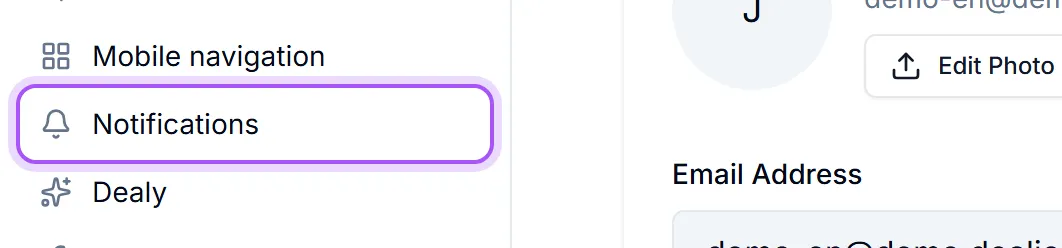
Välj hur du vill bli aviserad om ärendehändelser. Ändringar sparas automatiskt.
Every event is a separate row with its own three switches, so "email me only when a deal is won, but tell me in-app about everything" is a normal setup rather than a compromise. Rows are grouped by what they are about, and the groups run in alphabetical order, so you can scroll straight to roughly where the one you want should be: Aktiviteter, Kunder, Fakturor, Leads, Affärsmöjligheter, Prenumerationer, Supportärenden, Teamchatt and Hela teamet, among others.
You can also turn one off from the notification itself. Every row in the bell and in Notifications has a small menu on the right that offers to switch off exactly that kind of notification, so you do not have to work out which row here produced it. It asks you to confirm first and tells you what will stop arriving, and the setting it changes is the same one you see on this page. On an issue status change it also offers that single status, so you can silence Löst from a resolved notification and keep the rest.
Drowning in email? Turn the E-post column off for a whole group and leave I appen on. Nothing is lost — it all still arrives in the bell: Notifications. Återställ till standard puts everything back if you go too far.
Hela teamet is the opt-in one worth knowing about: Alla vunna affärsmöjligheter över hela företaget — slå på för att fira med teamet
Two switches in Teamchatt are not about being notified at all. Statusuppdateringar räknas som olästa decides whether automated status updates raise an unread badge, and Arkivering markerar en konversation som läst decides what archiving a conversation does to what is still unread inside it: När du arkiverar en konversation rensas allt oläst i den. Stäng av det om du använder arkivet som en läslista och vill behålla de olästa markeringarna.
SMS costs money. SMS-aviseringar skickas från ditt kontos nummer och kostar pengar per meddelande. Kostnaden faktureras ditt konto. Av som standard. It also needs a mobile number in international format on your profile — the panel warns you if yours is missing or written without a country prefix.
Toasts. Visa en tillfällig avisering på skärmen så att du kan agera utan att öppna aviseringspanelen Hur länge förhandsvisningen visas innan den försvinner, and you can set it to Tills den stängs if things vanish before you have read them.
Pausing pop-ups for a while. The menu under your avatar has a Aviseringar switch. Turn it off and it asks for how long: half an hour, an hour, three hours, a day, or Tills vidare. A timed pause shows when it ends next to the switch and turns itself back on, so sharing your screen or a focus block never leaves pop-ups off by accident. Notifications still land in the bell while paused. Turning the toast setting on here also ends a pause.
Tysta timmar för SMS, under Allmänt: Tysta SMS-aviseringar under dessa timmar. Aviseringar i appen och via e-post påverkas inte, så du ser fortfarande allt när du är tillbaka.
Platform issue statuses. Under Plattformsärenden, keep your preferred channels enabled for Status ändrad. Then use Meddela mig om dessa statusar to select the statuses that should notify you. To hear only when work is sent back, leave Omarbetning on and turn the other statuses off, including Löst. These choices apply to both in-app and email notifications and save immediately.
Tysta automatiska ändringar still controls automated changes. Säg ändå till när ett ärende väntar på min granskning can bypass that mute for review requests, but only if Under granskning is selected above. Deployment announcements have their own switches and are unaffected by status choices.
Var det här till hjälp?