Turn on two-factor authentication
Kräv en engångskod från en autentiseringsapp vid inloggning. Rekommenderas — och vissa organisationer kräver det.
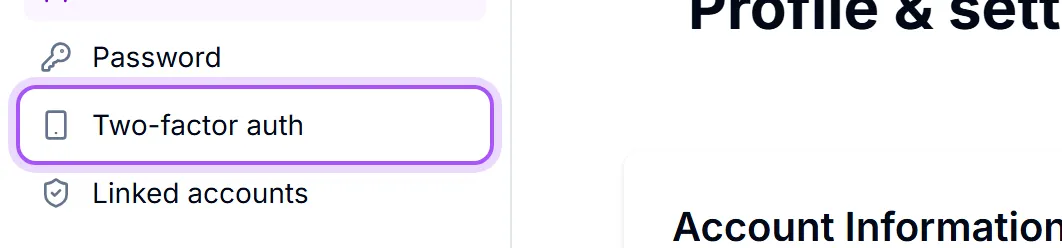
- 1Open Profil och inställningar and pick Tvåfaktorsautentisering.
- 2Click Konfigurera 2FA.
- 3Skanna den här QR-koden med din autentiseringsapp (Google Authenticator, 1Password, Authy…) och ange den 6-siffriga koden som visas.
- 4Click Verifiera och aktivera.
Kan du inte skanna? Ange den här nyckeln manuellt: — the panel shows a key you can type into the app by hand if the camera will not cooperate.
Once it is on, the panel shows Aktiv and En verifieringskod krävs när du loggar in.
If your company requires it, you will see Din organisation kräver tvåfaktorsautentisering. Konfigurera den för att fortsätta. You may be given a few days' grace before it becomes compulsory, and the reminder tells you how many are left. After that, setting it up is the only way past the sign-in screen. Whether it is required is an administrator's decision, not yours: Användare kan alltid aktivera 2FA själva. Här bestämmer du om det krävs.
Turning it off is Inaktivera in the same panel. If your organization requires 2FA you will be asked to set it up again immediately, so there is little point.
Lost the phone with the authenticator on it? Nobody — including us — can read your codes back to you. Ask an administrator to remove the authenticator from your account, then set it up again on the new phone. Adding the account to a password manager that syncs across your devices, rather than a single phone, avoids the whole problem next time.
Var det här till hjälp?