Add an activity
You add an activity from the Aktiviteter page in the sidebar.
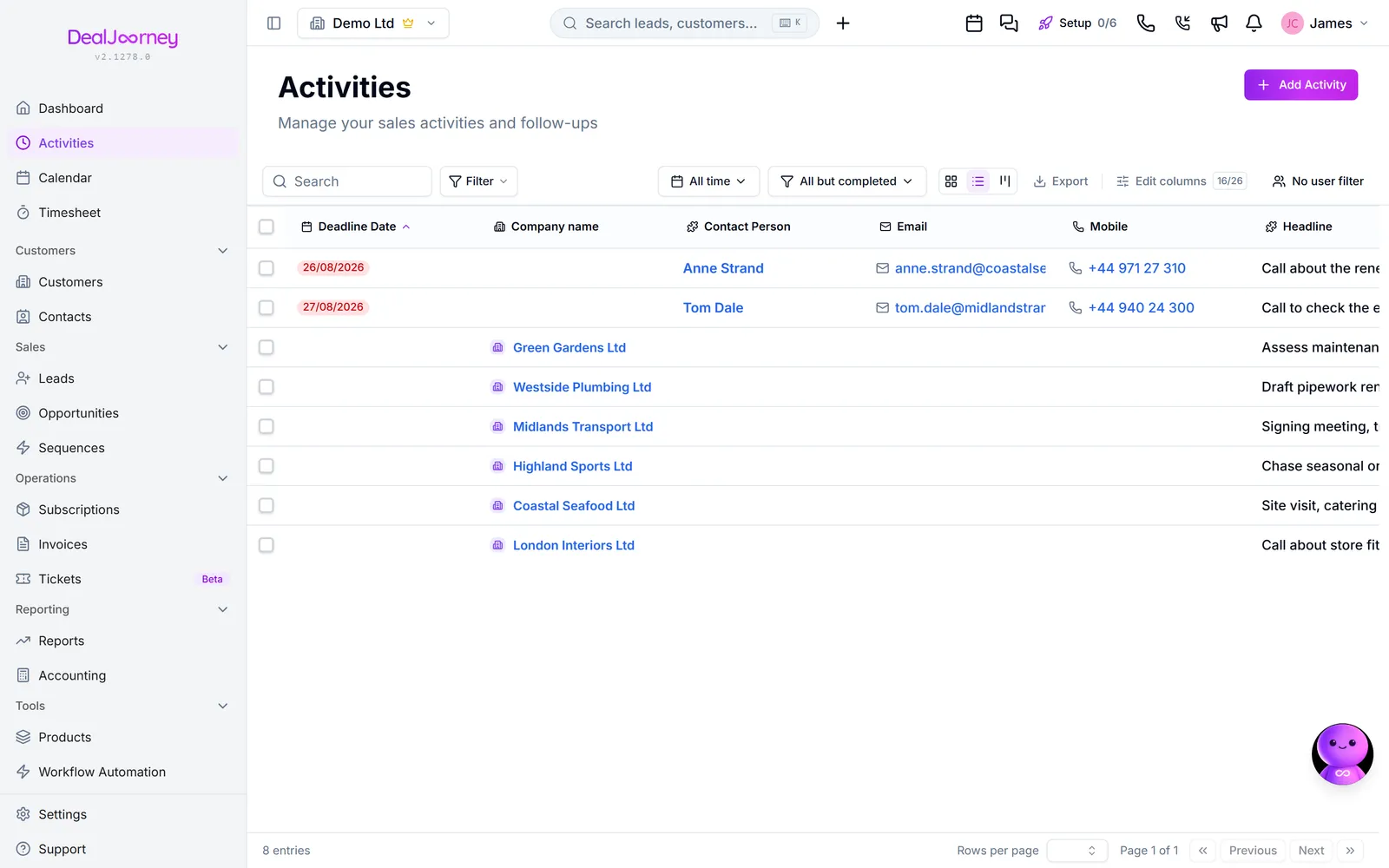
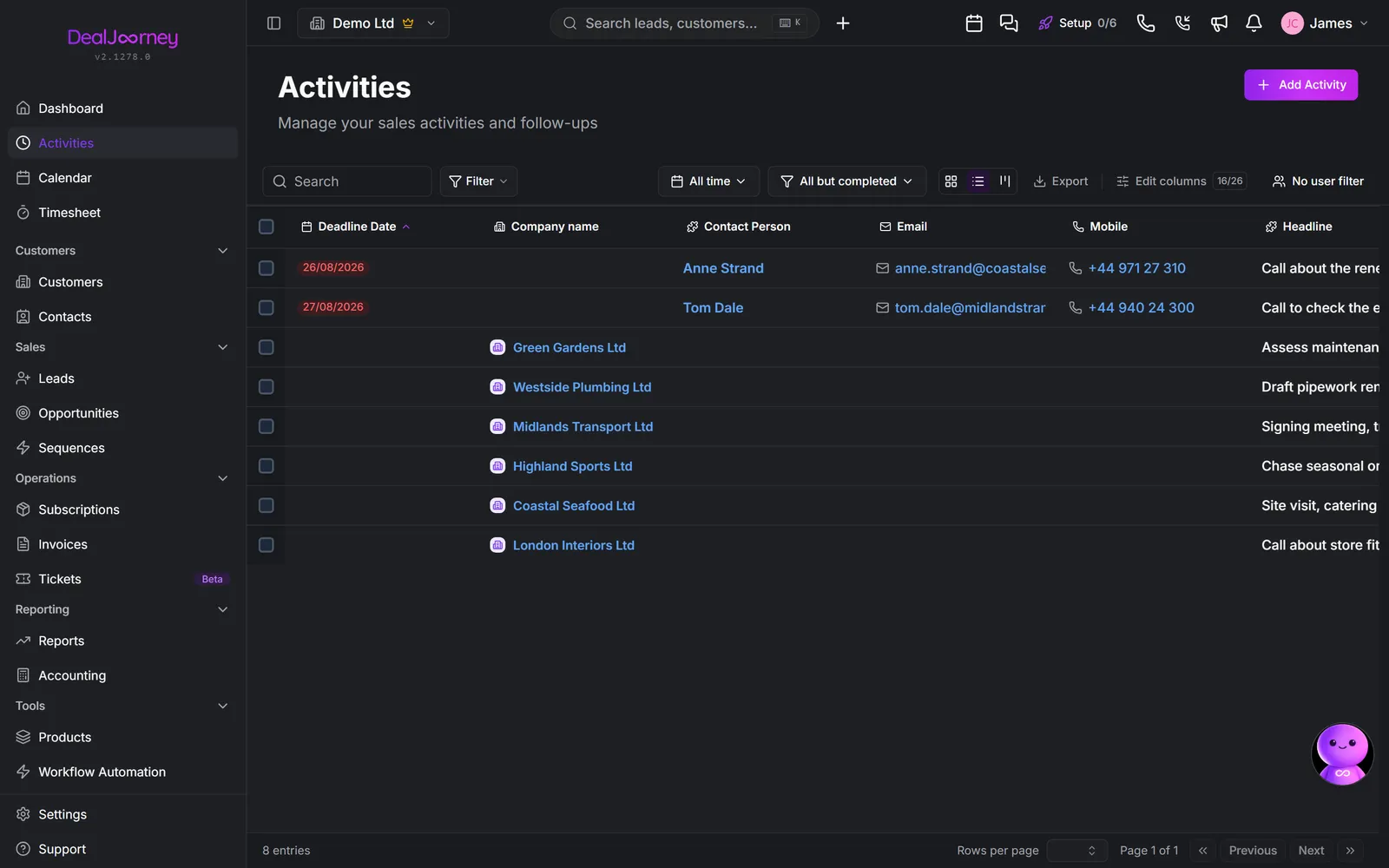
- 1Open Aktiviteter from the sidebar.
- 2Click Legg til aktivitet in the top right of the page.
- 3Choose the Type: a call, a meeting, a task, and so on.
- 4Give it a headline that says what needs doing, so the list is readable at a glance. "Call about renewal pricing" beats "Follow up".
- 5Set the deadline date. Without one the activity never appears in the time filters, which is where most people work from.
- 6Set the Ansvarlig if it is not for you.
- 7Link it to the customer, contact, lead, or opportunity it belongs to.
- 8Save.
Repeat an activity
Open a saved activity and use Sett opp gjentakelse in its overview. Choose daily, weekly, monthly or yearly repetition, the interval, and a future date for the next activity. An optional end date includes that date; leaving it blank keeps the series going until you stop it.
Monthly and yearly schedules have a day of month. A short month uses its last day, then returns to the chosen day in the next longer month. Dates follow the company's timezone, including daylight saving changes.
A new planned activity appears on each scheduled date. Its owners, customer, contact, quotes, subscription, team queue, custom record and custom fields are copied from the saved activity. Checklist items start unchecked. Notes, comments and completion history belong to their individual activity.
Editing or completing an occurrence changes only that occurrence. To use its saved details for future copies, edit the recurring schedule, select Bruk aktivitetens lagrede felter, ansvarlige, koblinger og sjekkliste for fremtidige kopier., and save. Leave any activity text field and wait for the save indicator before updating the future copies.
Use Stopp fremtidige kopier to stop creating new copies. Existing activities remain available. A stopped or ended series can be restarted with a future next date. If the service is temporarily unavailable, missed dates are caught up when it resumes.
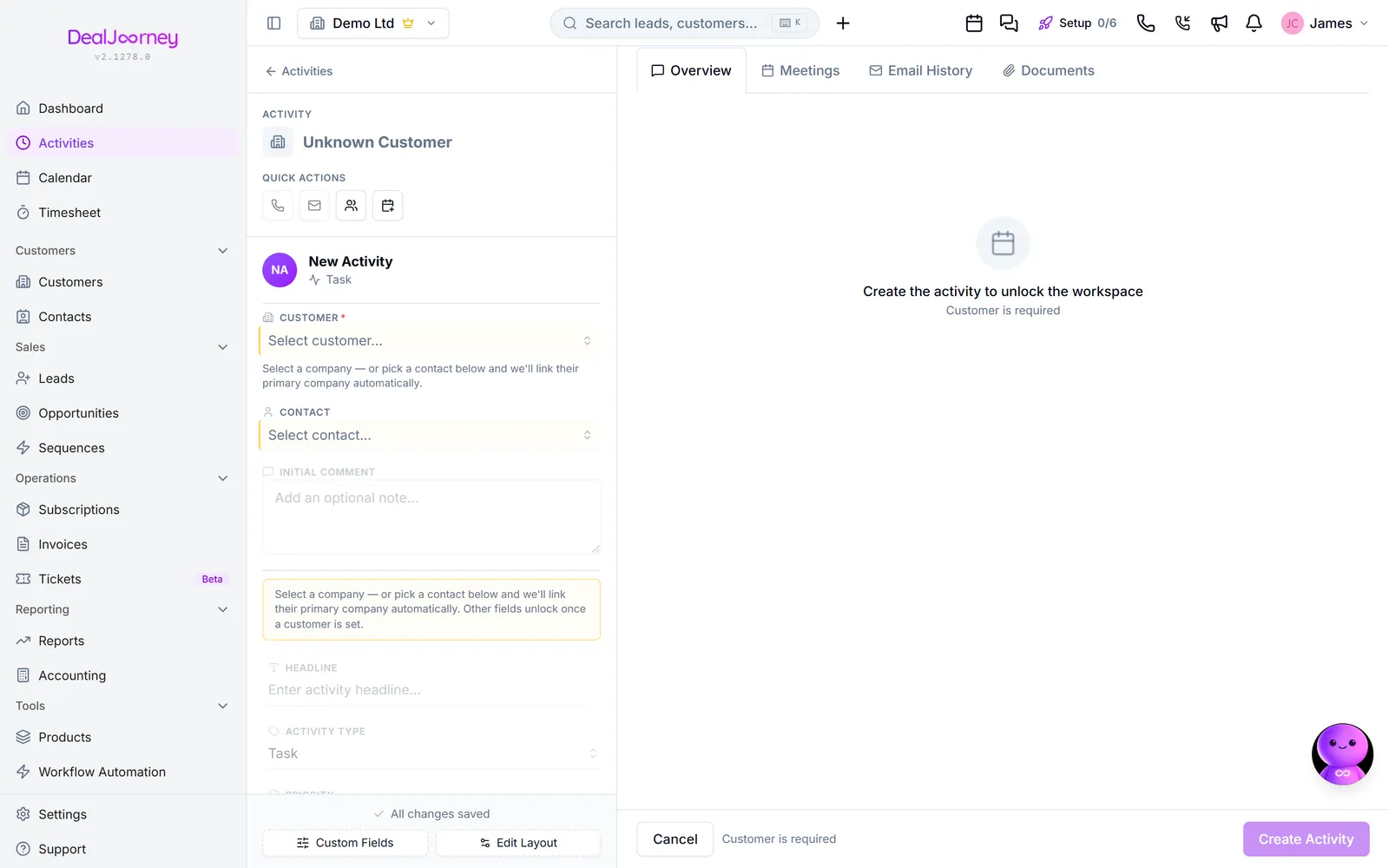
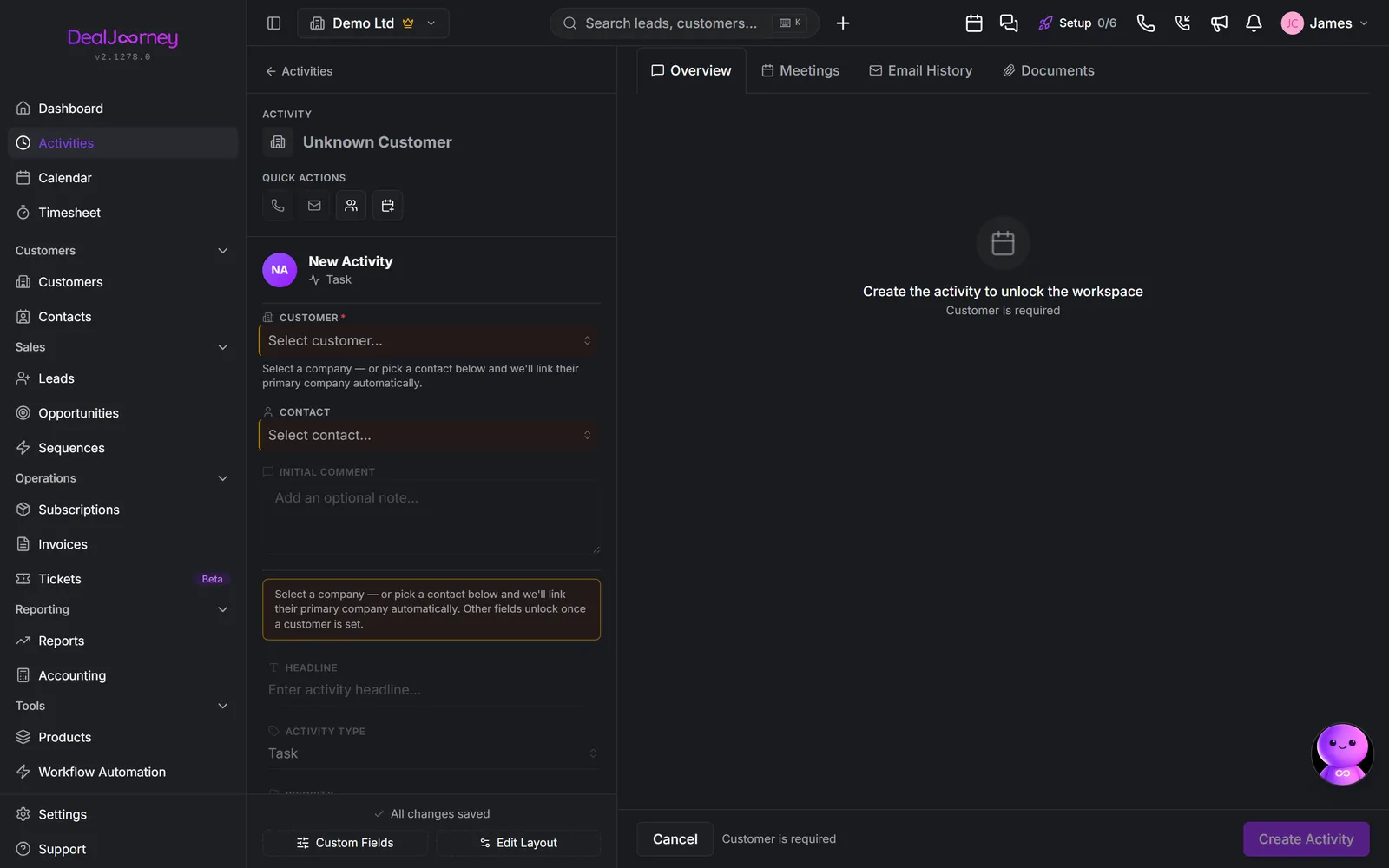
Adding it from the record is usually better. Open the customer or opportunity first and create the activity from there. The link is then filled in for you, and the activity lands on that record's timeline immediately. An activity with no record attached is easy to lose.
To set the next follow-up on an activity that already exists, use Sett oppfølging from the menu at the end of its row rather than creating a second activity.
From an email in Outlook. The DealJourney add-in creates an activity from the mail you are reading, linked to the customer, contact or opportunity it belongs to. Choose who is responsible for it there and it arrives already assigned, which matters most when you are filing a colleague's email.
Straight onto the board. Switch the Aktiviteter page to the board view (the columns icon next to the list icon). Every column ends in Ny: click it, type a name and press Enter, and a task appears in that column, assigned to you. The box stays open so you can type the next one; press Escape when you are done. Open the card afterwards to add a deadline, a customer or anything else.
Each column is one of your activity statuses. An administrator can add a column with Legg til kolonne at the far right of the board. That adds a new status, so it is offered everywhere a status is picked, not only on the board. Renaming, reordering or removing statuses is done where the status field is edited: Add a custom field.
Var dette nyttig?