Add a customer
You add a customer from the Kunder page in the sidebar.
- 1Open Kunder from the sidebar.
- 2Click Lägg till kund in the top right of the page.
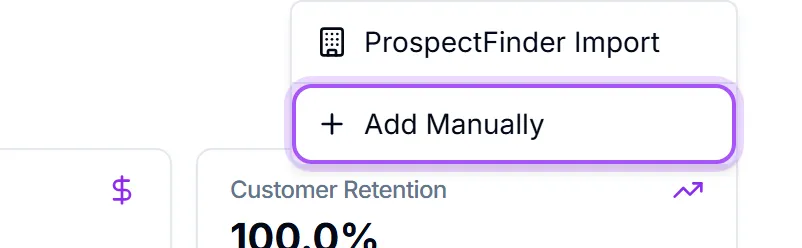
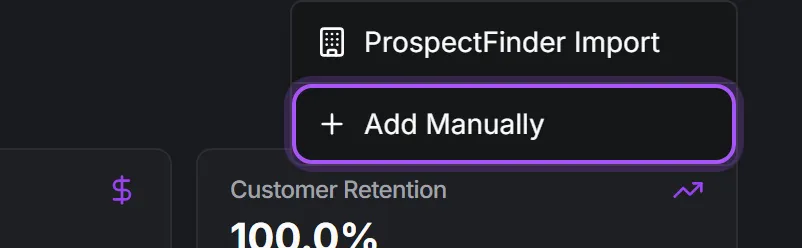
- 3Choose Lägg till manuellt from the menu. This opens a blank customer page.
- 4Fill in the details. At minimum give the company a name; add the email, phone number, website, and industry too if you have them, so the record is useful later.
- 5Press Skapa kund.
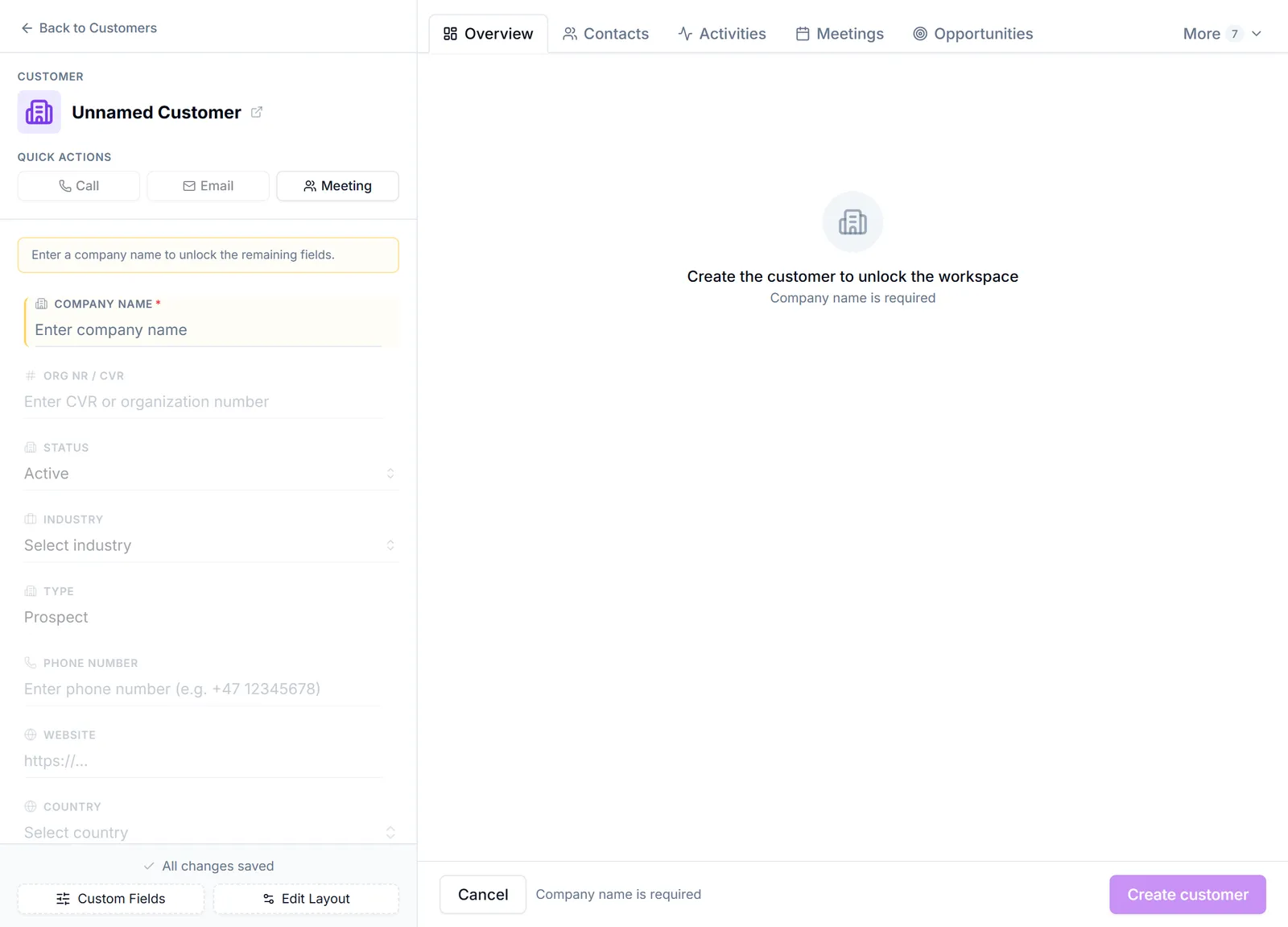
The new customer is saved, and you can open it any time to add contacts, opportunities, notes, or subscriptions.
If the company is already there, you are told before you save. This happens on the full customer page and in the smaller pop-up form alike. When the organisation number or the company name matches a customer you already have, a box appears naming the ones it found. Click a name to open that customer instead, or choose Skapa ändå if the two really are different companies. The check ignores differences in capitals, spaces and punctuation, so "ABC-Tak AS" and "ABC - TAK AS" are recognised as the same firm. Customers that are already in twice are flagged on the customer list itself; see Merge duplicate customers.
If you'd rather look the company up automatically instead of typing everything by hand, choose Prospect Finder-import from the same Lägg till kund menu. It fills in the company's details for you.
Enter the company name or organisation number and press Sök. A no-results message appears only after the search has finished. From the global plus menu, Kund opens this lookup too.
Picking a company creates it. Click Välj or Företag on a result (or + Kontakter and then a contact person) and the customer is saved straight away with the register's details, with you as the responsible person, and its page opens. There is no second Skapa kund to press. If it looks like a company you already have, the same "already here" box described above appears first, so you can open the existing one or create it anyway. Two things still take you to the filled-in customer page instead, where you press Skapa kund yourself: your workspace requires a field the register cannot fill in, so you can fill it first, or the workspace's field settings have not finished loading. If saving fails, nothing is saved, you are told, and the lookup stays open with your search so you can try again.
Say what the company becomes. Next to the country buttons, Läggs in som decides whether the company arrives as a customer, a prospect, or any other category your workspace uses. It starts on whatever an administrator set under Från företagssökningen in Automatisering av kundtyp, so a team that prospects first can have every company arrive as a prospect without anyone choosing it each time. Change it in the lookup and that choice is yours from then on, on every device, until you change it again. The same choice applies to the bulk import.
One branch of a Danish chain. A Danish company has one CVR number, and each of its branches or shops has its own P-number with its own name and address. With DK selected you can type the P-number, bare or written as "P-nr. 1031956834", and that one branch appears as Filial hittad på P-nummer. If you search by the CVR number or the name instead, choosing a company that has several branches opens a short list of them to filter by street or town, with Företaget självt at the top for a deal with the company as a whole. The customer is created with the branch's name and address and keeps the company's CVR number, so it still matches your accounting system, while the P-number keeps it apart from the company's other branches. The duplicate check knows the difference too: another branch of the same chain is not offered as "already here". If the Danish register cannot be reached, you are told and the company itself is created, so you are never stuck.
The address suggests itself as you type. Start typing a street name in the Adress field and a short list of real addresses appears under it. Pick one and the post code and place fill themselves in, along with the country if you had not chosen one yet. The suggestions come from the national address registers of Norway and Denmark, so the post code is always the one that genuinely belongs to that street number, which is what keeps the customer on the map and on a correct invoice. You can ignore the list entirely and type the whole address yourself; the field is an ordinary one and nothing waits for the suggestions. For a country with no public address register, and if the register is briefly unreachable, no list appears and you simply type as before. The same suggestions appear when you change the address later on the company's own page.
From an email in Outlook. The DealJourney add-in creates a company from the sender's address without you leaving your inbox. Choose who is responsible for it there and the company arrives already owned, exactly as if you had created it here.
Var det här till hjälp?