Read your week, and add hours up over a period
Your week. Min vecka shows one week at a time with a Veckans summa. Move with Föregående vecka, Nästa vecka and Denna vecka. Idag is marked, and anything currently being timed shows as Pågår nu.
The week as a grid. The two small buttons next to Att avgöra switch between Visa som lista över dagar and Visa som veckorutnät. The grid works like a PowerOffice timesheet: one row per project, part of a project or task, one column per day, with a Summa per row and Per dag at the bottom. Your choice is remembered on this device.
- 1Lägg till rad and pick the project, and if you like a part of it and a task.
- 2Click a day and type the hours (1,5 or 1:30). Leave the cell with Tab or Enter and the hours are saved. Billable is set from the project, exactly as in Log hours.
- 3Type a new number to change an hour, or clear the cell to remove it.
The small mark in the corner of a cell says whether that hour is billable: a tick for Fakturerbart, a dash for Inte fakturerbart and a dotted circle for Inte avgjort. Hover over it to read it. To change the note, the billable choice, the day or anything else, point at the cell and click the pencil: it opens the same form as the list.
Registered absence shows in both the list and the grid, under the day it covers and counted in that day's total. A full day counts as your normal working hours. It cannot be typed over; register or change absence with Registrera frånvaro, which is in both views.
A cell with a lock cannot be typed into. Tap it to see why: Flera timmar är registrerade här. Ändra dem i listvyn. An hour that is invoiced, or approved in the accounting system, cannot be changed at all. One that is only sent to the accounting system still has its pencil.
Adding it all up. Switch to Timmar for totals over a longer period.
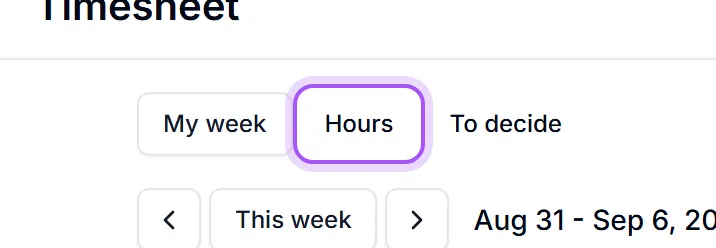
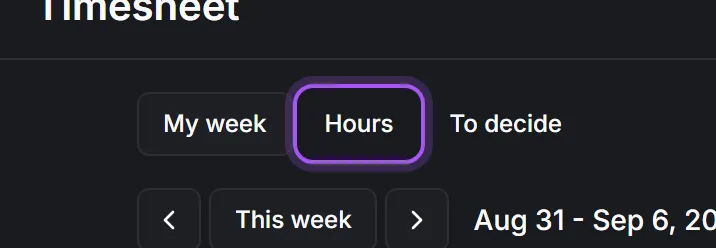
- 1Pick the period: Denna vecka, Förra veckan, Denna månad, Förra månaden or Senaste 90 dagarna.
- 2Set Gruppera efter to the question you are asking: Kund, Projekt, Affär, Ärende, Uppgift or Person.
- 3Read the four numbers at the top: Totalt, Fakturerbart, Inte avgjort and Att fakturera.
Grouping is the whole trick. The same hours grouped by Kund answers "who is eating our time"; by Person it answers "how is the team loaded"; by Ärende it tells you which support customer is unprofitable. Change one dropdown rather than running three reports.
Att fakturera is the number to act on: billable hours that have not yet been marked as invoiced. See Billable, not billable, and invoiced.
Hours with no customer are grouped under Ingen kund — usually internal work, and usually the first thing to look at when the billable percentage is disappointing.
Var det här till hjälp?